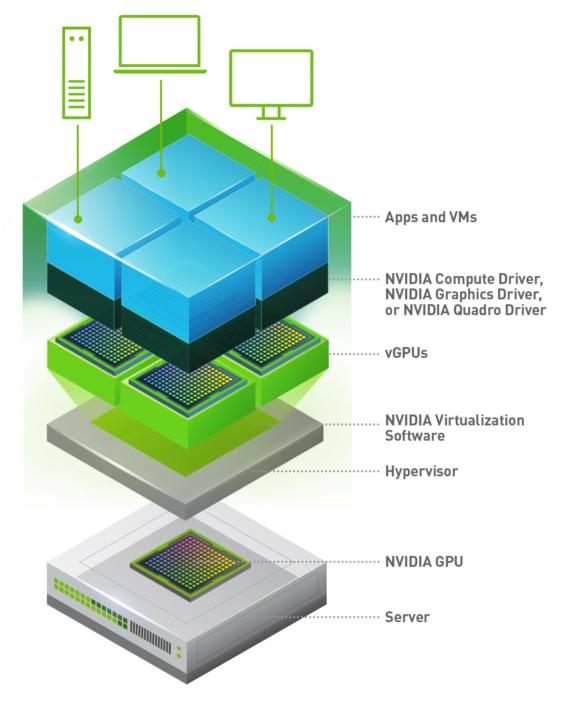
Want to run GPU-accelerated applications inside a Windows 11 Hyper-V virtual machine? This guide walks you through enabling GPU Paravirtualization (GPU-PV).
TL;DR
- Install Hyper-V (force the installation if using Windows 11 free).
- Create a VM (disable Secure Boot, enable TPM).
- Enable GPU virtualization by packaging host GPU drivers (NVIDIA Turing+ or AMD RX 5000+), and copy them to the guest VM.
Introduction
I will walk through the process of enabling GPU-PV, allowing the guest VM to utilize the host's graphics card for acceleration. We will use a software called Hyper-V, the native hypervisor developed by Microsoft, to create virtual machines on x86-64 systems running Windows.
In this guide, we refer to the "host" as your main physical computer running Windows 11, and the "guest" as the virtual machine (VM) you intend to run.
Requirements
Before starting, ensure you have the following:
- Host OS: Windows 11.
- Hyper-V Installed: If you are using the free Home edition, you may need to enable it via a workaround script. Check this gist for instructions.
- Windows 11 ISO: Download the disk image from the official Microsoft Software Download page.
- Compatible GPU and drivers installed: NVIDIA Turing+ architecture, or AMD RX 5000+ series.
The installation of Hyper-V is straightforward, but if you have the free home edition you should check those instructions.
You will also need to download a windows 11 ISO, check under "Download Windows 11 Disk Image (ISO) for x64 devices" section.
Create you first VM
Follow the official Microsoft tutorial to create a VM in Hyper-V. Make sure to disable secure-boot and enable TPM in the VM settings, otherwise the installation will not succeed (ISO is not detected).
Set-up GPU‑PV
Once your VM is created but before installing the guest OS (or after, depending on your workflow), we need to prepare the host for GPU partitioning.
Verify GPU support
Open PowerShell as Administrator on the host and run:
Get-VMHostPartitionableGpu
For NVIDIA GPUs, the output should include the vendor identifier VEN_10DE.
Run the configuration script
We will use a community script to set the necessary VM parameters. To download this script and run it, follow:
Invoke-WebRequest -Uri "https://gist.githubusercontent.com/neggles/e35793da476095beac716c16ffba1d23/raw/0500355ed003e441a0ab2785ee5aa4a33a7ec8ab/New-GPUPVirtualMachine.ps1" -OutFile $env:USERPROFILE\Downloads\New-GPUVirtualMachine.ps1
Set-ExecutionPolicy RemoteSigned -Scope CurrentUser
.\$env:USERPROFILE\Downloads\New-GPUVirtualMachine.ps1
To prevent issues with GPU state, disable automatic checkpoints:
Set-VM -Name "YourVMName" -AutomaticStopAction TurnOff
Note: While official Microsoft documentation mentions hardware partitioning, they describe it only for Windows Server. This guide is for Windows 11 clients.
Check that the VMs has the correct graphic adapter:
Get-VMHostPartitionableGpu
Prepare and transfer GPU drivers to guest
GPU-PV does not expose a standard PCIe device to the VM. Instead, the VM sees a virtual adapter that relies on specific host-side driver components and we must package these drivers and transfer them to the guest.
To package the GPU drivers from host and sent it to guest, download and run this script.
You should replace accordingly YourVMName and GuestUsername:
Invoke-WebRequest -Uri "https://gist.githubusercontent.com/neggles/e35793da476095beac716c16ffba1d23/raw/0500355ed003e441a0ab2785ee5aa4a33a7ec8ab/New-GPUPDriverPackage.ps1" -OutFile $env:USERPROFILE\Downloads\New-GPUDriverPackage.ps1 -Filter "NVIDIA"

Set-VM -Name YourVMName -GuestControlledCacheTypes $true
Enable-VMIntegrationService -VMName "YourVMName" -Name "Guest Service Interface"
Copy-VMFile -Name "YourVMName" -SourcePath .\GPUPDriverPackage.zip -DestinationPath "C:\Users\GuestUsername\Downloads\GPUPDriverPackage.zip" -FileSource Host
Finalize and check the Guest OS
Inside the VM, navigate to C:\Users\GuestUsername\Downloads\ and extract GPUPDriverPackage.zip in C:\Windows\ as explained here.
Once installed, the VM should recognize the GPU in windows settings.
To go further
If you need to change the VM's display resolution, you can use the following PowerShell command on the host:
Set-VMVideo -VMName "YourVMName" -HorizontalResolution 2560 -VerticalResolution 1440 -ResolutionType Default
Learn more about GPU-PV vs true PCIe passthrough differences here.